Skip to content
TazSchedule

Director guide

How to schedule an event

A director walkthrough: create the competition, import teams and courts, generate and pack the slate, print gate and court sheets, then share the public event page — brackets, venues, tickets, and team schedules included.

1

Step 1

Create the competition

Start free, add a location, then create a league or tournament and pick the sport.

  • From Get started, create your organization and sign in to admin.
  • Add a scheduling location, then create a competition — tournament or league — and choose the sport (basketball, futsal, volleyball, and others).
  • Name the event the way families will recognize it. That name appears on printable schedules, scoresheets, and the public link.

Tip

  • Basketball tournaments use pool → bracket rules. Futsal tournaments follow the USYF-style format. Pick the sport before you import so formats and rest defaults match.
Start free
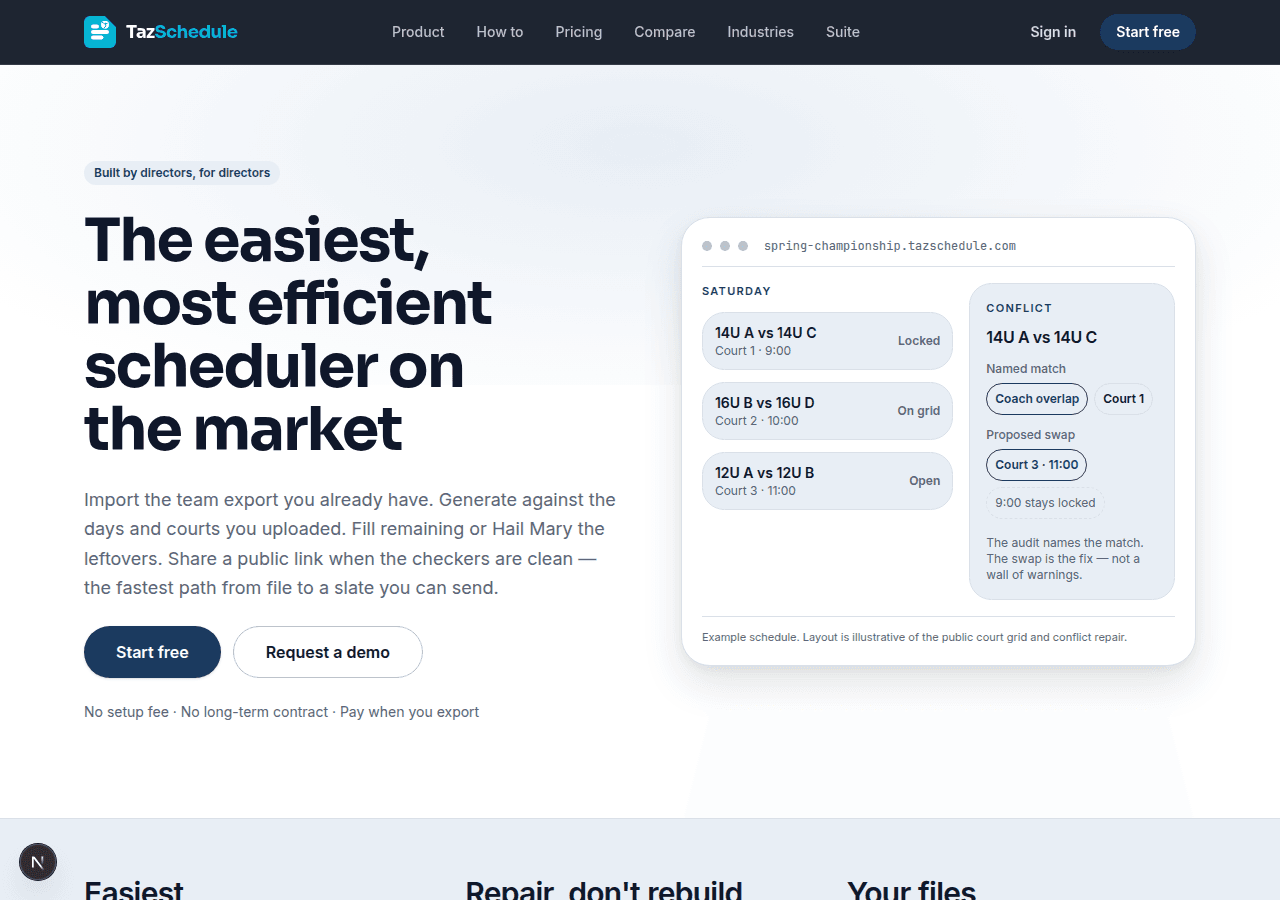
TazSchedule home — built for directors scheduling weekends
2

Step 2

Import teams and court inventory

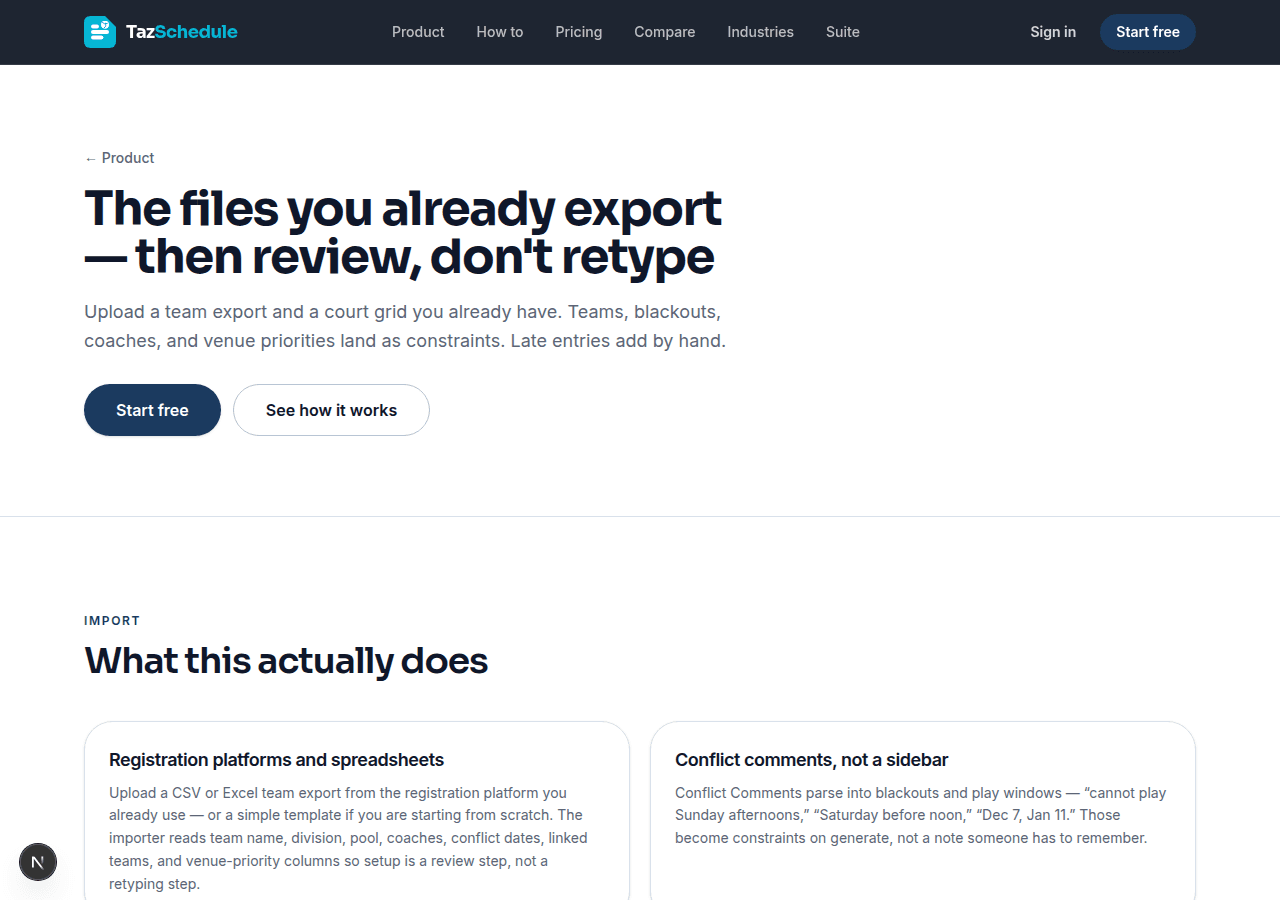
Upload the team export and venue grid you already have — then review constraints before you generate.

  • On the Teams tab, import a CSV or Excel export from your registration platform, or use a simple template.
  • Conflict comments, blackouts, coaches, linked “don’t tip at the same time” teams, and venue priorities become constraints — not notes to remember later.
  • Upload court or field availability (session grids or a simple slot list) so generate only places games on inventory you actually have.

Tip

  • Late entries can be added by hand after import. Saving clears the slate so you can Generate again with the new locks.
  • HTG Conflict Team columns map to same-time exclusions automatically.
  • Optional Logo URL column (or Add logo on the roster) shows team marks on the public event page.
Import details
Import feature overview for teams and venues
3

Step 3

Set rest windows and tournament options

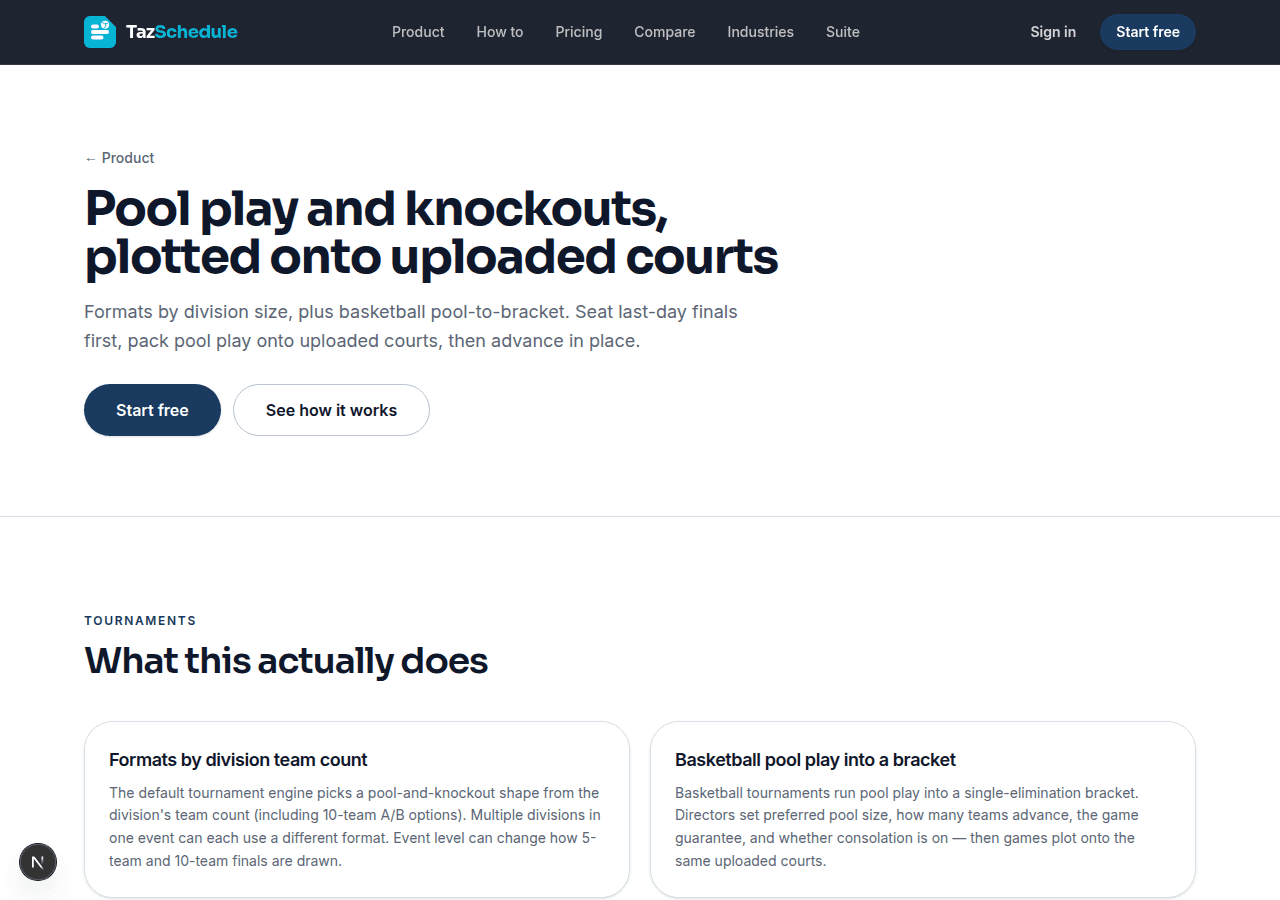
Confirm min/max rest between games, overnight late-game rules, and how many teams advance.

  • On Setup, set the rest window between same-day tips (for example 2–4 hours between starts for basketball).
  • Optional overnight rule: after a late tip, delay the next morning’s earliest tip so teams are not back too early.
  • For basketball brackets, set how many teams advance, pool sizes, and consolation when you need a game guarantee.
  • Optional public extras (same Setup area as courts): street addresses per venue, plus TazTix and TazCart links so families see Buy Tickets and Shop on the event page.

Tip

  • “2 hours between” means two empty tip blocks between starts when games are 60 minutes — not a 2-hour wall-clock gap from tip to tip.
  • Leave ticket or store URLs blank if you are not selling that weekend — those buttons stay hidden on the public page.
Tournament formats
Tournament packing and format options
4

Step 4

Generate the schedule

Run Generate to place pool and bracket games onto your uploaded courts.

  • Open the Schedule tab and Generate. The engine places games against rest, blackouts, coaches, same-time exclusions, and venue priorities.
  • Review the court grid and By team view. Orange conflict dots call out hard problems that still need attention.
  • If a few games sit as leftovers, do not re-import — use Pack / Fill remaining next.
Product overview
Product overview of the scheduling workflow
5

Step 5

Pack leftovers and clear conflicts

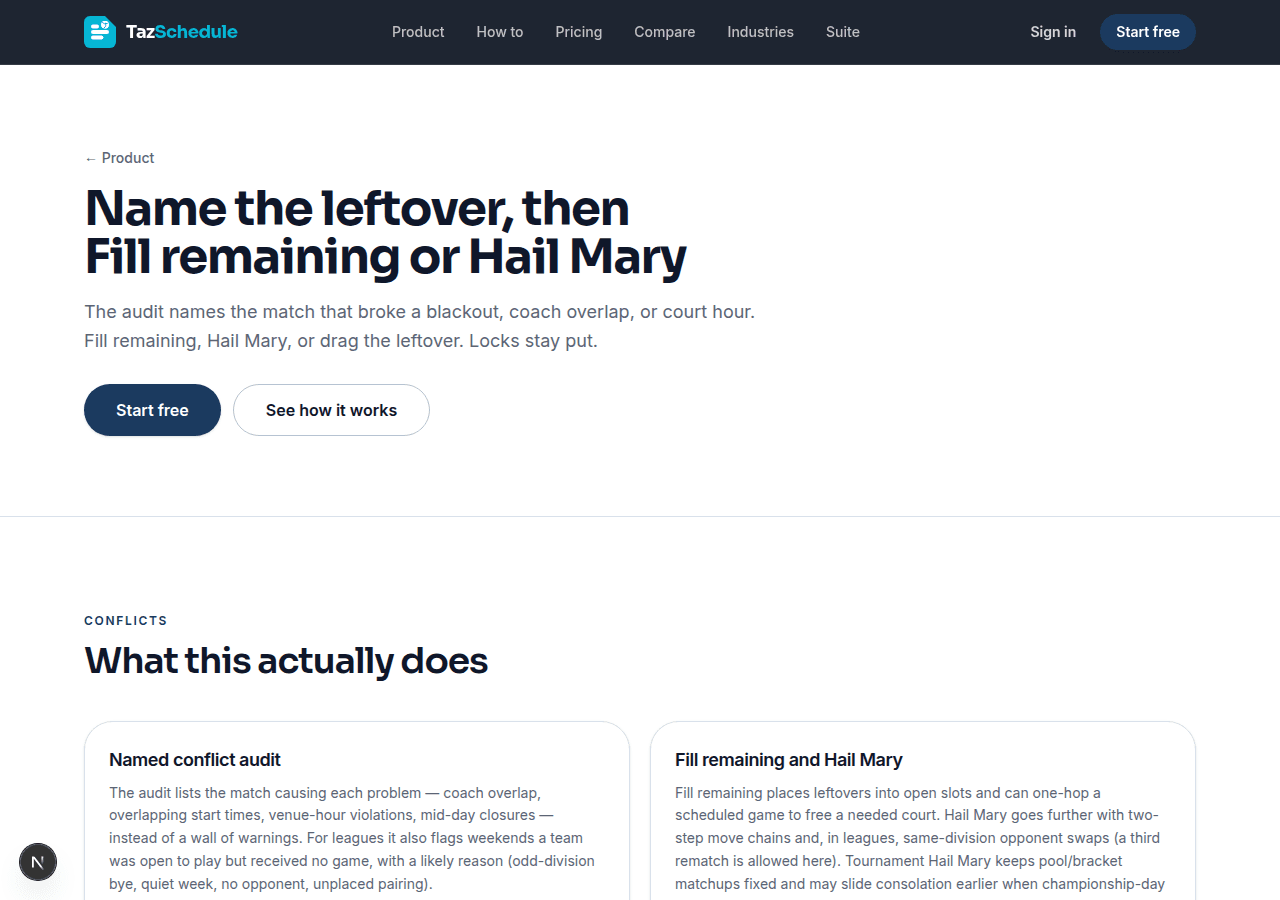
Fill remaining slots, use Hail Mary only when you must bend max rest, then download the conflict audit.

  • Pack / Fill remaining places leftovers into open court slots while honoring hard constraints.
  • Hail Mary is the last pass — it may exceed max rest only; min rest and blackouts stay hard.
  • Run the conflict-audit PDF before you publish. It lists blackout misses, rest-window issues, double-books, and same-time exclusions that still overlap.

Tip

  • Lock hand-placed games you are happy with so Pack and regenerate leave them alone.
Conflict tools
Conflict audit and leftover repair tools
6

Step 6

Print schedules and scoresheets

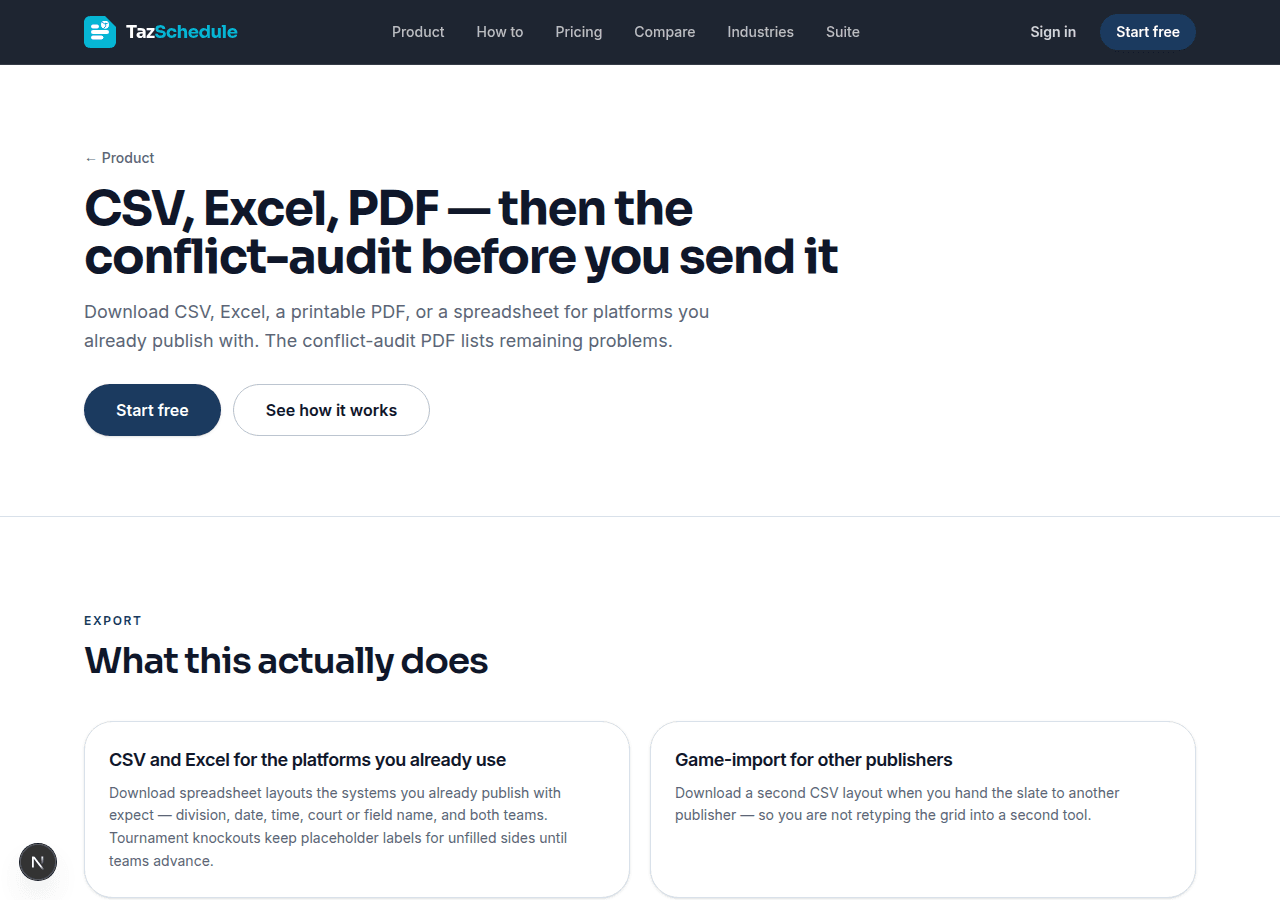
Export the division PDF, gate venue schedule, per-court wall sheets, and blank scoresheets.

  • Open Export & share on the Schedule tab.
  • Printable schedule PDF — divisions, pools, and the full game list for binders and coaches.
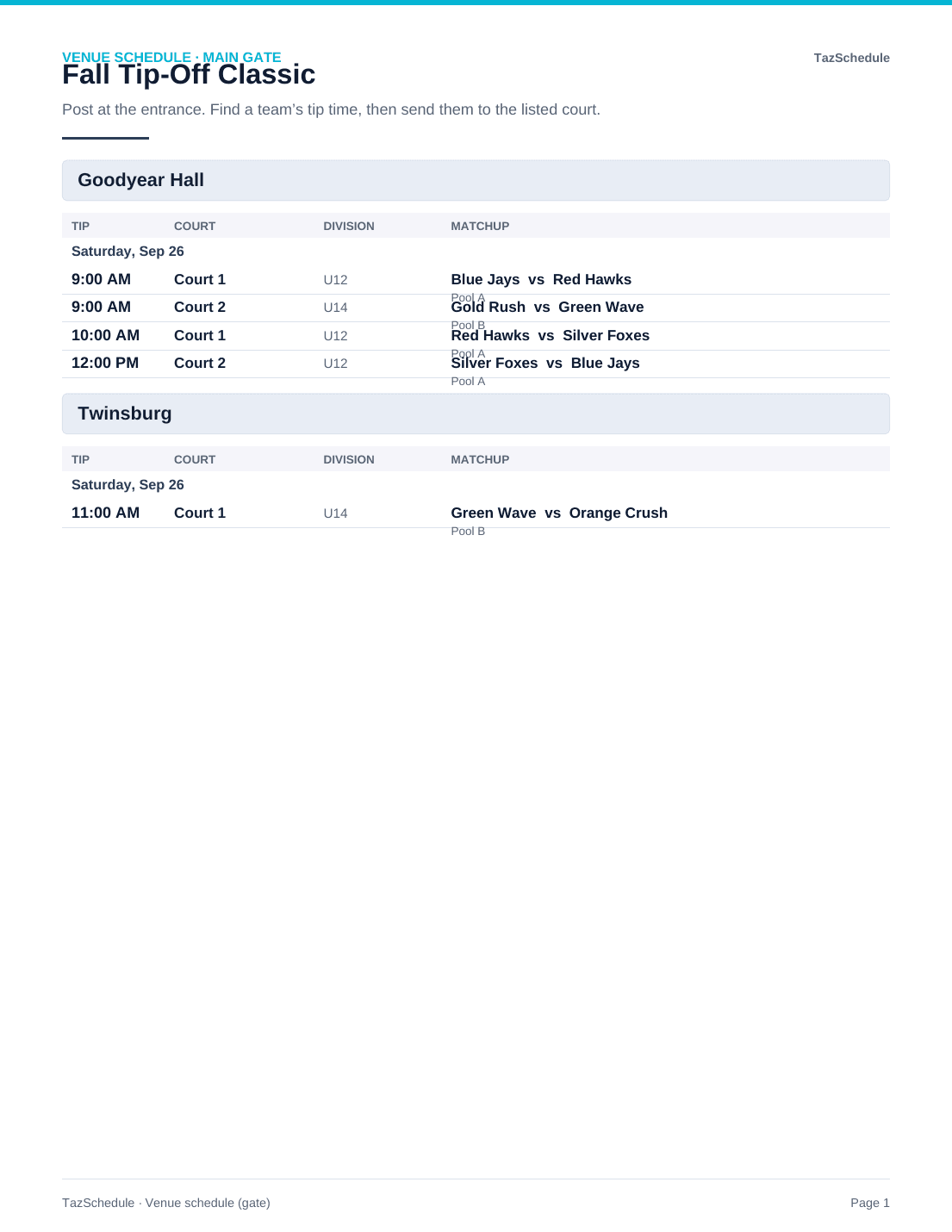
  • Venue schedule (gate) — tip → court handout for the main entrance so staff can direct teams.
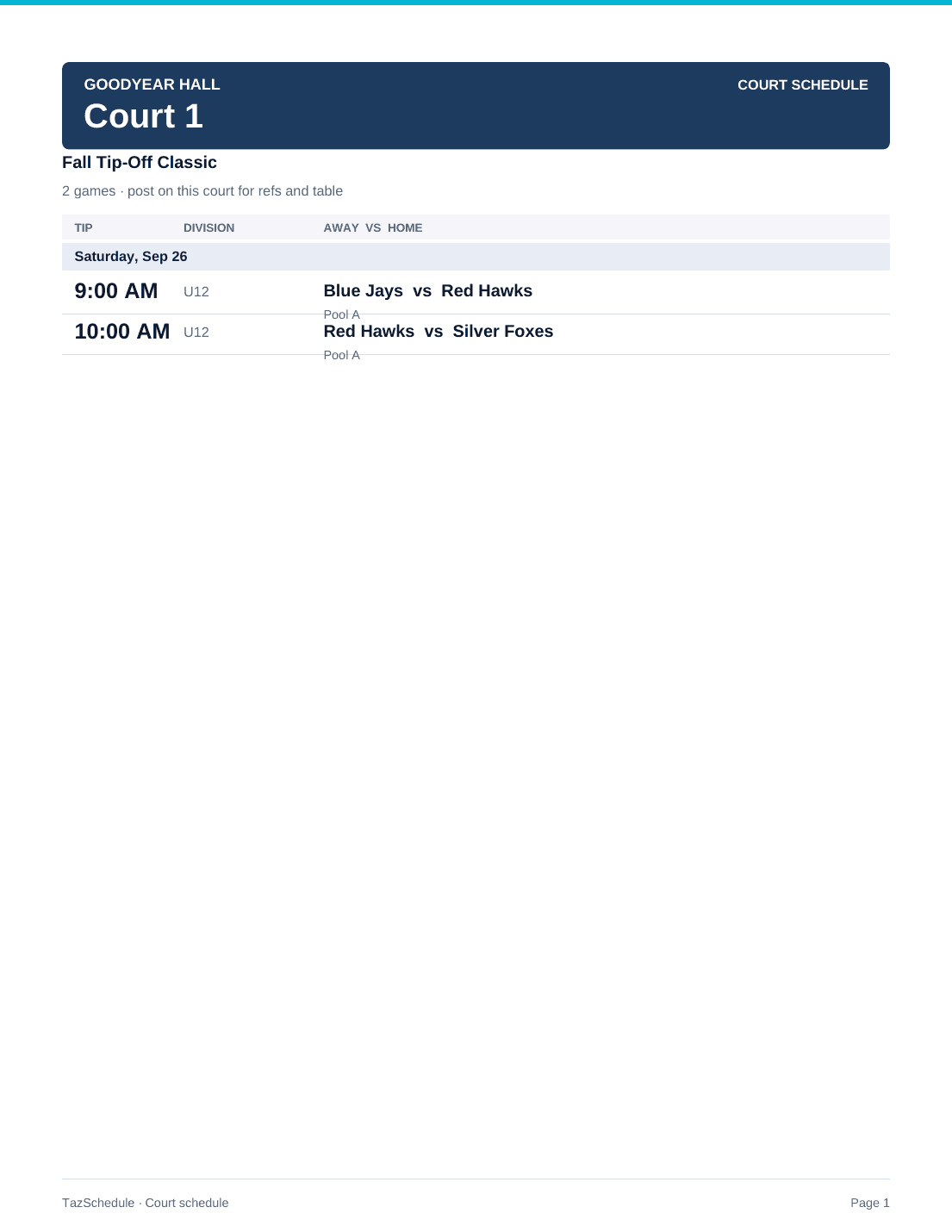
  • Court schedules — one wall sheet per court so refs and the table see what tip is next.
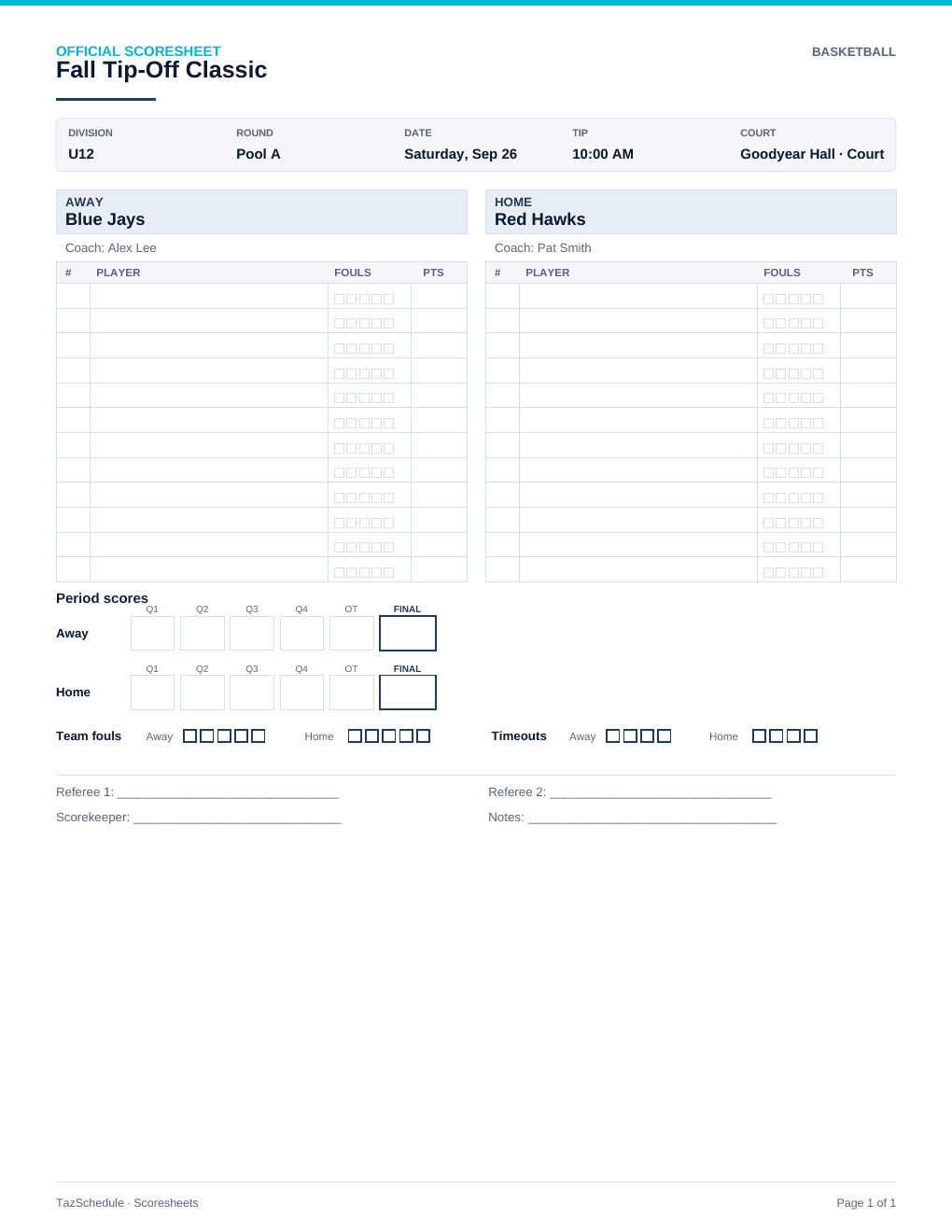
  • Printable scoresheets — one blank game sheet per placed tip (sport-aware periods, fouls, and timeouts).

Tip

  • Print venue sheets for the lobby, court sheets at each scorer’s table, and scoresheets in a stack ordered by tip time.
Export details
Export and printable schedule options
Sample venue schedule for the main gate
Gate handout — tip and court
Sample court wall schedule
Court wall sheet for refs
Sample basketball scoresheet
Blank scoresheet per game
7

Step 7

Share the event page

Copy one event link for the tournament home, brackets, venues, tickets, and team schedules — no parent account required.

  • In Export & share, copy the participant / event page link (it publishes automatically when the slate is ready).
  • Families land on the event home: browse divisions, find their team, open the championship bracket, and follow live scores without signing in.
  • When you entered them in Setup, venue street addresses appear under each game’s site, team logos show beside names, and Buy Tickets / Shop open your TazTix and TazCart pages.
  • Update a score or logo in admin and the public page refreshes. You can still send PDFs to the front desk — the link is what stops the Sunday-night re-export loop.

Tip

  • After you change logos, addresses, or ticket/store URLs, stay on Export & share once so the live link refreshes — or use Refresh publish.
Public schedule
Public event page share link

Ready to run your next weekend?

Create an organization, import the export you already have, and generate a conflict-checked slate you can print and share.